If you've ever looked at your monthly subscriptions, overflowing cloud storage, growing collection of gadgets, and the price of yet another streaming service and thought, "There has to be a better way to do this," welcome. You're in the right place.
Building a home server might sound like something reserved for people who wear hoodies in dark basements and talk to computers in languages the rest of us don't understand.
The good news? You don't need to be a networking expert, professional IT administrator, or the person who fixes the printer at family gatherings. (Although, let's be honest, you probably already are.)
With a little patience, some reasonably priced hardware, and the right software, you can build your own home server using Unraid.
 Adam Sooley
I've been tinkering with home technology for years, and one of the best things about running your own server is discovering just how much you can do with a single machine. File storage, photo backups, media streaming, smart home services, AI experiments, and a whole lot more.
The catch? Getting started can feel overwhelming. There are too many hardware choices, too many tutorials, and approximately 47 different opinions about how much RAM a home server needs.
Let's simplify things.
This guide walks you through five practical steps to build your first Unraid server, without overcomplicating the process or spending money on things you don't need.
What is Unraid, anyway?
Unraid is an operating system designed to help you turn a computer into a flexible home server. It lets you combine storage drives, run applications in Docker containers, and even host virtual machines, all managed through a web interface.
Think of it as your own little technology headquarters.
Instead of having a separate computer for every job, you can run multiple services on one machine. Your photos, documents, media library, smart home tools, and other applications can all live together.
The best part? You can manage almost everything from your regular computer using a web browser.
You don't need to spend your evenings staring at a command line wondering why one missing comma has ruined your entire weekend.
Well, not as often, anyway.
Step 1: Decide what you actually want your server to do
Before buying hardware, installing software, or searching for a deal on a used computer, figure out what you want your server to accomplish.
This is the most important step because your goals determine the hardware you need.
A server designed to store family photos has different requirements from one running several virtual machines, hosting an AI model, or transcoding multiple video streams.
Here are a few common uses:
- Personal cloud storage: Store and access your documents and files without relying entirely on third-party cloud services.
- Photo management: Organize, back up, and browse your family photos using applications such as Immich.
- Media streaming: Build a personal media library with Jellyfin.
- Smart home: Run services that support your home automation setup.
- Network protection: Host tools such as Pi-hole to help filter unwanted network traffic.
- Learning and experimentation: Run Docker containers, test new applications, or explore local AI.
 Adam Sooley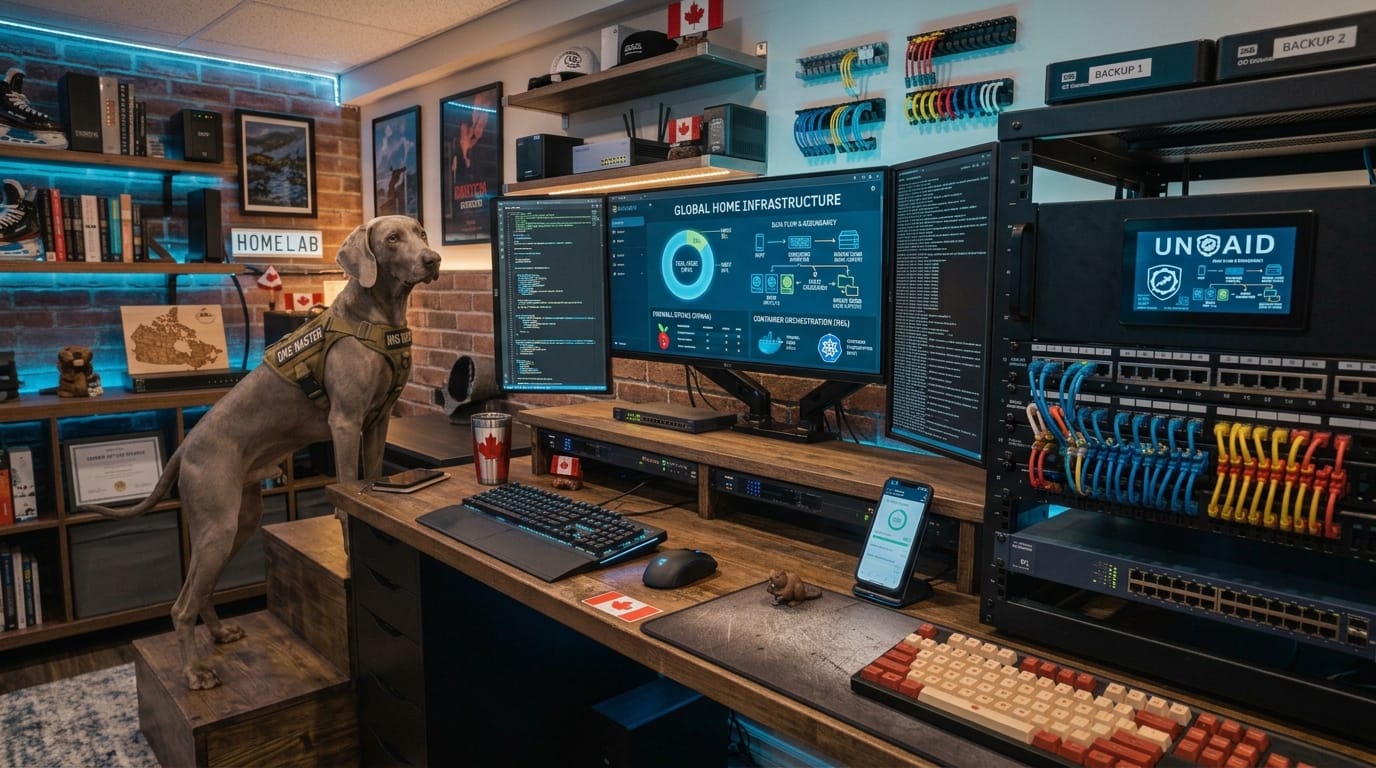
You don't have to do everything on day one.
Start with two or three things that would genuinely make your life easier. You can expand later, which is one of the advantages of Unraid.
Your first task: Write down the three things you'd most like your server to do.
If your answer is "everything," welcome to the club. Just remember that your wallet may have other plans.
Step 2: Choose hardware without breaking the bank
Here's where many beginners get into trouble.
They start researching server hardware and suddenly find themselves comparing enterprise processors, rack-mounted equipment, expensive RAID controllers, and enough memory to run a small accounting department.
You probably don't need any of that.
For a basic home server, a suitable desktop computer or a carefully selected collection of used components can be a perfectly reasonable starting point.
A beginner-friendly hardware checklist:
| Components | What to look for |
|---|---|
| CPU | A reasonably modern processor suited to your applications |
| RAM | 8–16 GB is a sensible starting point for many basic setups; 16 GB gives you more room to grow |
| Storage | One or more reliable drives sized for your files and future needs |
| SSD | Useful for application data, Docker containers, and virtual machines |
| Motherboard | Enough SATA connections, expansion options, and compatible hardware |
| Network | Gigabit Ethernet is a good starting point for most homes |
| Power Supply | A reputable, appropriately sized unit |
| Case | Enough room for your current drives and planned expansion |
| USB Drive | A compatible USB flash drive for Unraid's boot setup |
These are starting points, not strict requirements. Your actual needs will depend on the applications you plan to run, the size of your media library, and whether you're doing anything demanding, such as AI workloads.
If you're planning to run several virtual machines or larger local AI models, you'll need to plan accordingly.
Can you reuse an old computer?
Absolutely, provided it meets Unraid's current hardware requirements and has suitable storage and networking.
An old desktop can be a great way to get started. Just check its power consumption, cooling, drive connections, and overall condition before committing to it.
Remember that a server often runs 24 hours a day. A computer that costs less to buy but consumes considerably more electricity might not be the bargain you thought it was.
As a Canadian homeowner, I like to consider the long-term cost of running equipment, not just the price tag. That electricity meter doesn't care how good a deal you got on Facebook Marketplace.
Your second task: Identify what hardware you already own before purchasing anything new.
You may be closer to your first server than you think.
Step 3: Install Unraid and get your storage organized
Once you've settled on your hardware, it's time to install Unraid.
Unraid runs from a USB flash drive, allowing the computer to boot into the operating system without requiring a traditional operating-system installation on your main storage drives.
At a high level, the process looks like this:
- Download the official Unraid USB creation tool and follow the current installation instructions.
- Prepare a compatible USB flash drive with Unraid.
- Connect your storage drives and configure your computer's firmware to boot from the USB drive.
- Start the server and access its management interface from another computer on your network.
- Complete the initial setup and configure your storage.
Unraid is commercial software, so check the current licensing options and trial terms before committing. You can begin learning and testing with the available trial process before deciding which license suits you.
Follow the official documentation for the current installation procedure: https://docs.unraid.net/
Understand the storage basics
This is where it helps to slow down and understand a few terms.
Array: Your main storage pool, made up of the drives you configure for it. Unraid's traditional array can combine drives of different sizes.
Parity: An optional drive used to help reconstruct data from a failed array drive, provided the configuration and remaining drives allow it.
Cache pool: A separate pool of storage, often using SSDs, that can support application data, virtual machines, and file transfers.
Shares: Named storage locations that organize your files. For example, you might create separate shares for documents, photos, media, and application data.
You don't need to understand every advanced setting before getting started. Begin with a simple, well-understood configuration and expand as you learn.
One important warning: parity is not a backup. It can help protect against certain drive failures, but it doesn't protect you from accidental deletion, ransomware, theft, fire, or every kind of hardware failure.
Important: Assigning and formatting drives can erase existing data. Double-check every drive's identity and make sure anything important is backed up before you start.
Keep another copy of important files, ideally with a backup stored separately from your server.
 Adam Sooley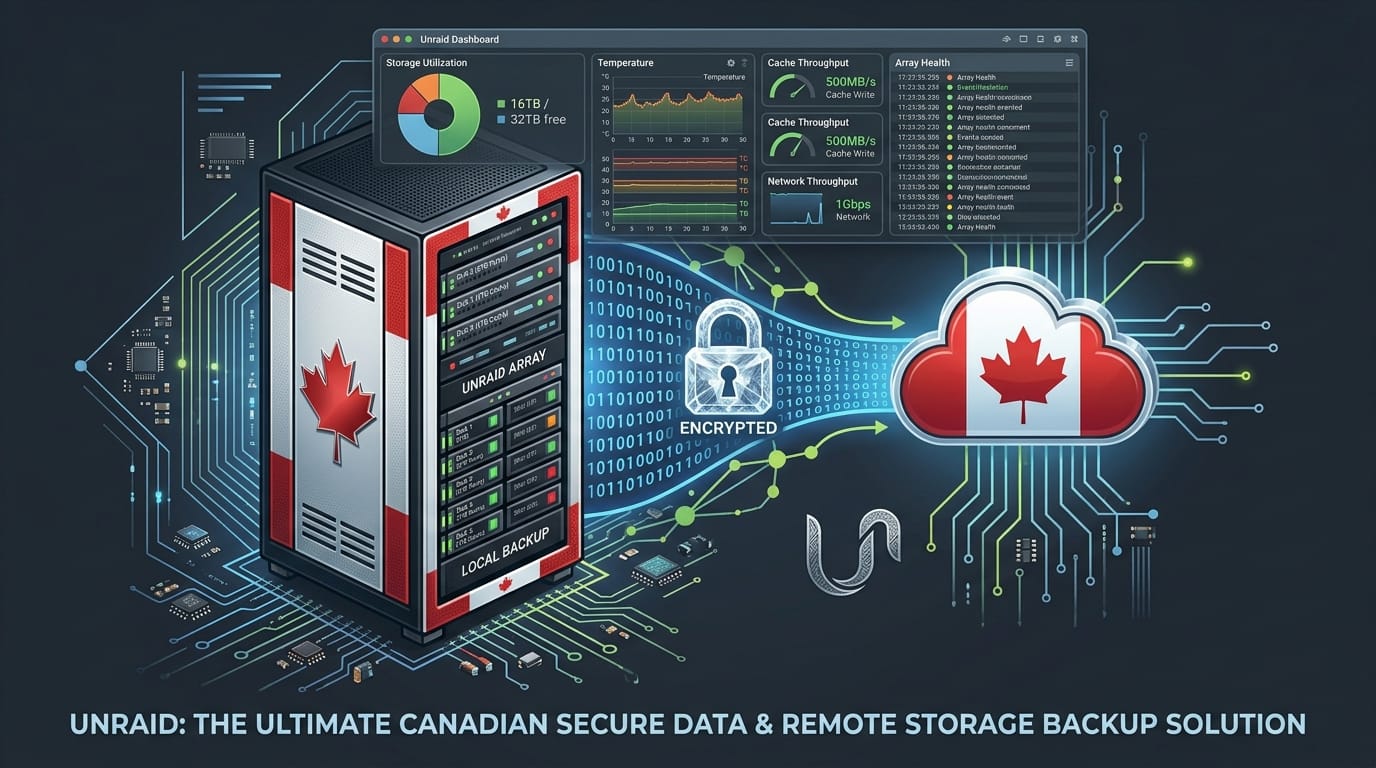
And before assigning any drives to an array, verify which drive is which. Drive configuration mistakes can destroy data. Never assume an existing drive is empty just because you're planning to use it.
Your third task: Get Unraid installed, access its web interface, and create a basic storage plan before moving important files onto the server.
Step 4: Add your first applications
Now for the fun part.
A working Unraid server is useful on its own, but applications are where it starts to become something special.
Unraid supports Docker containers, which let you run many applications in isolated environments without installing a separate operating system for each one.
Think of Docker containers as individual workspaces running on your server. Each application has its own configuration and requirements, while sharing the underlying hardware.
You manage them through Unraid's interface and the tools you choose to install.
Here are five applications worth exploring:
Immich - your personal photo library
Immich provides a self-hosted photo and video management experience. It can be a great option if you want to manage your own photo library rather than relying entirely on a subscription service.
 Adam Sooley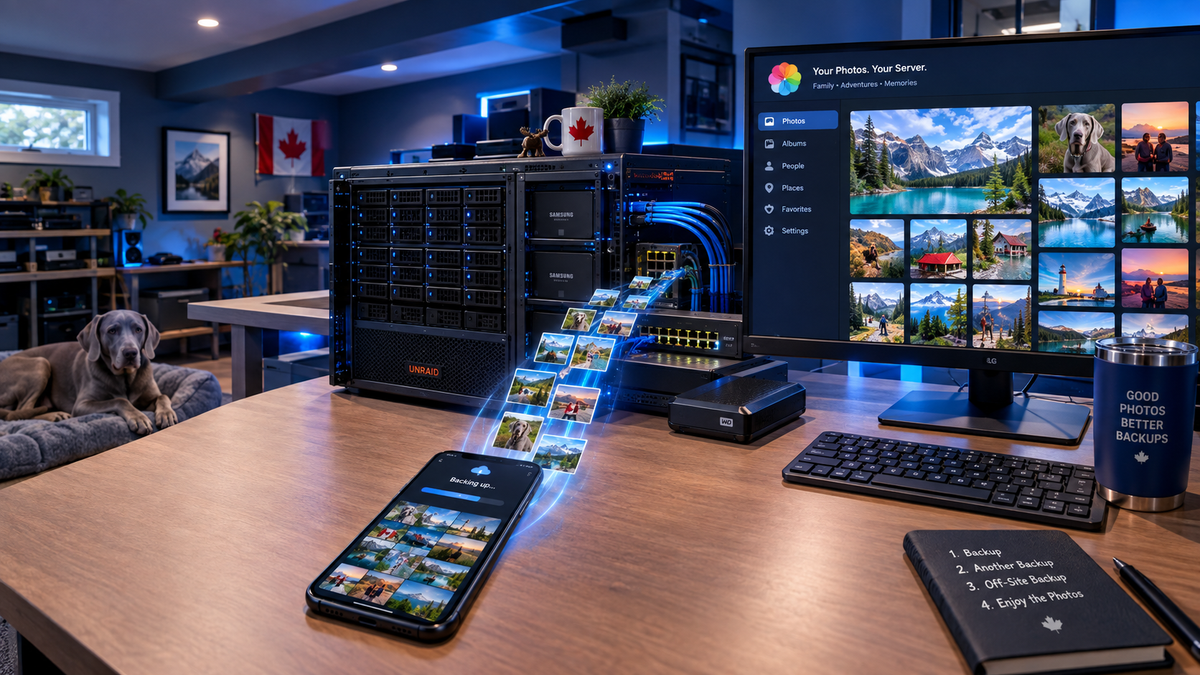
Jellyfin - your personal media server
Jellyfin lets you organize and stream your own media to supported devices around your home.
Nextcloud - your personal cloud
Nextcloud offers file storage, synchronization, sharing, and other collaboration features. It can help you build a more independent personal cloud.
 Adam Sooley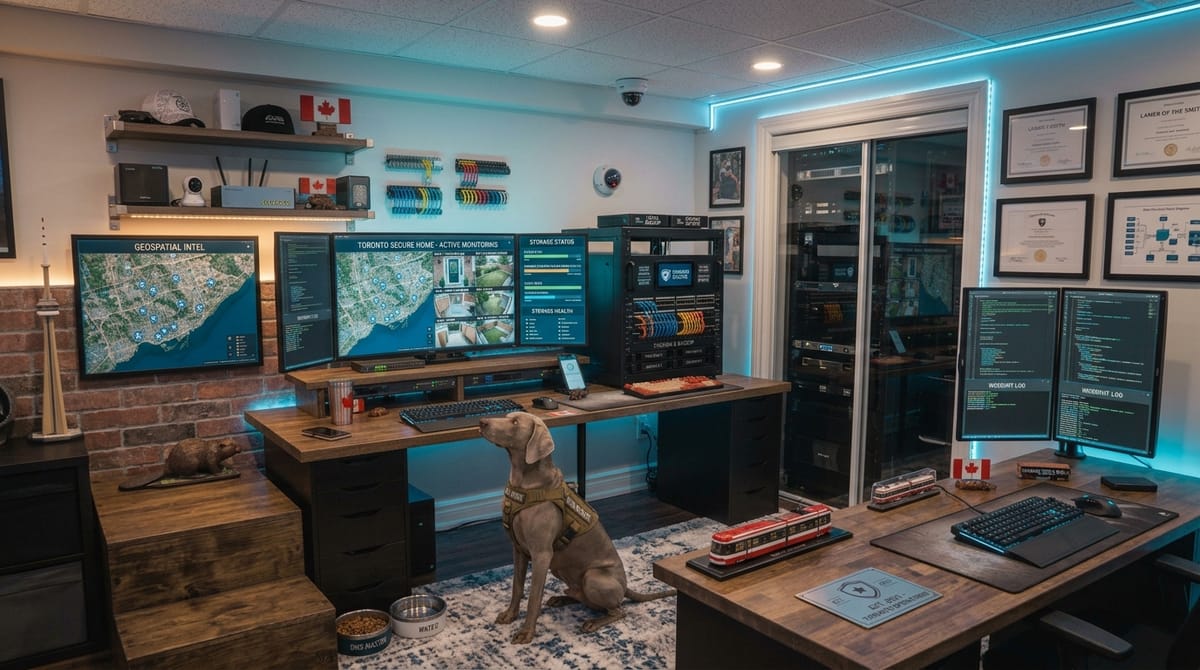
Home Assistant - automate your home
If you're interested in smart home technology, Home Assistant can bring supported devices and automations together in one place.
Pi-hole - network-wide ad blocking
Pi-hole can filter DNS requests across your network, helping block many unwanted domains for devices that use it.
 Adam Sooley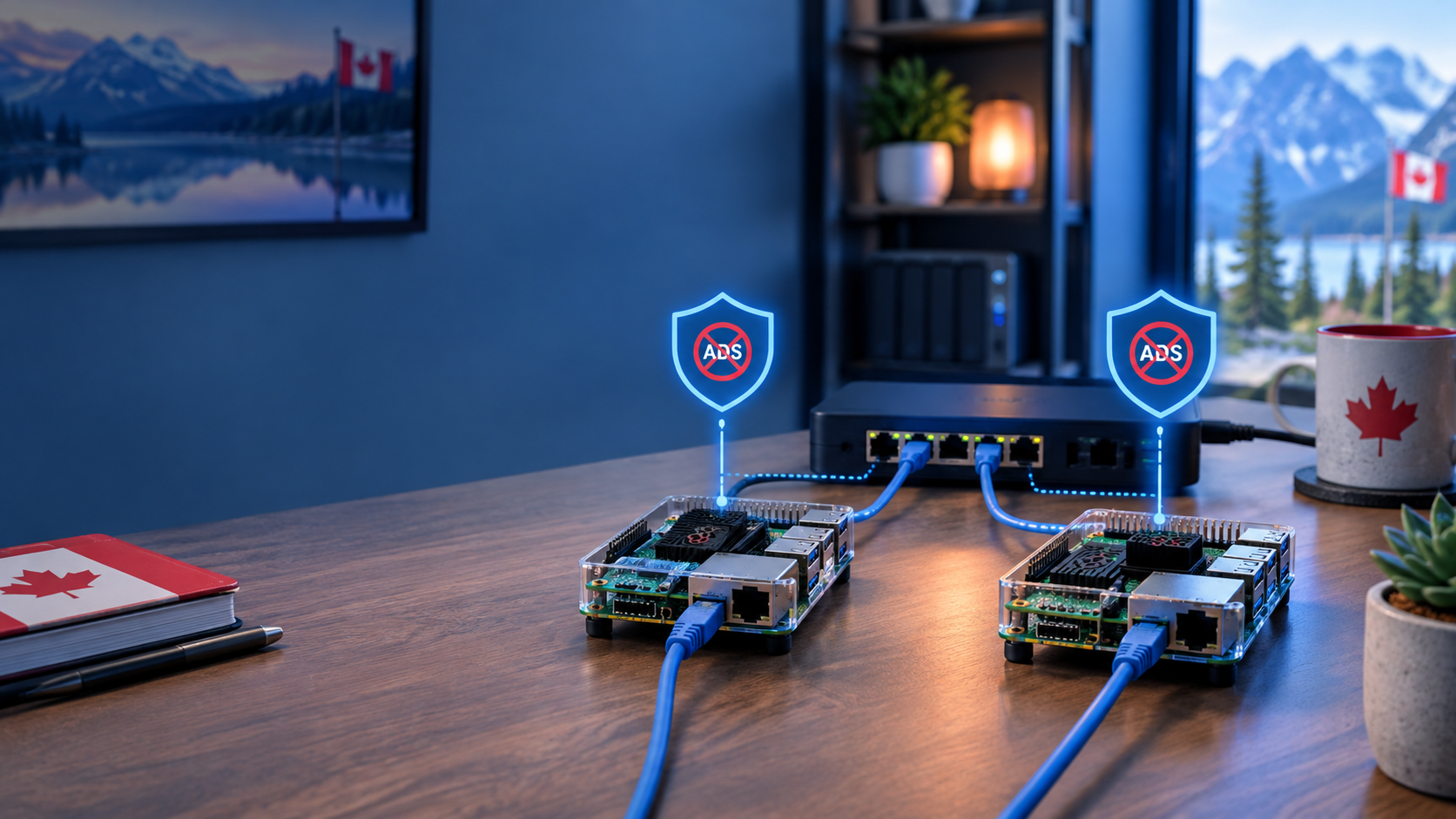
These are examples, not a checklist you must complete immediately. Choose the applications that solve an actual problem for you.
Start with one. Make sure it works. Learn how its storage, networking, and configuration are set up. Then move on to the next.
Also, remember that self-hosting means taking responsibility for updates, security, backups, and ongoing maintenance. Some applications require more attention than others.
Your fourth task: Install one application, confirm that it works, and make sure its important data is stored somewhere you can back up.
Congratulations. You've now moved beyond owning a computer that sits in a corner and into the wonderful world of running your own services.
Step 5: Secure your server and make it reliable
It's tempting to skip this step because security isn't nearly as exciting as installing a new application.
But it's also the difference between building a useful home server and creating a future troubleshooting project.
Your server may eventually hold family photos, personal documents, account information, and applications that control devices in your home.
Treat it accordingly.
Start with these basics:
- Use strong, unique passwords. Protect your Unraid management account and every application that supports authentication.
- Keep everything updated. Apply security updates to Unraid, containers, and other software according to their documentation.
- Back up important data. Keep copies of irreplaceable files outside the server and test that you can restore them.
- Limit network exposure. Don't expose the Unraid management interface directly to the public internet.
- Use secure remote access. If you want to access services away from home, choose a carefully configured VPN or another appropriate, secured access method.
- Monitor your server. Keep an eye on drive health, temperatures, storage capacity, and application availability.
- Plan for power failures. Consider whether a UPS makes sense for your setup and configure appropriate shutdown protection.
If you use a reverse proxy or a tunnel to access services remotely, remember that the method of connection doesn't automatically make the application secure. Authentication, permissions, updates, and appropriate access controls still matter.
And please, don't assume that because something is running inside a Docker container, it is magically protected from every possible security problem.
Containers are useful isolation tools, not an excuse to ignore security.
Your fifth task: Before relying on your server, confirm that your important data is backed up, your accounts are protected, and you have a plan for updates and recovery.
 Adam Sooley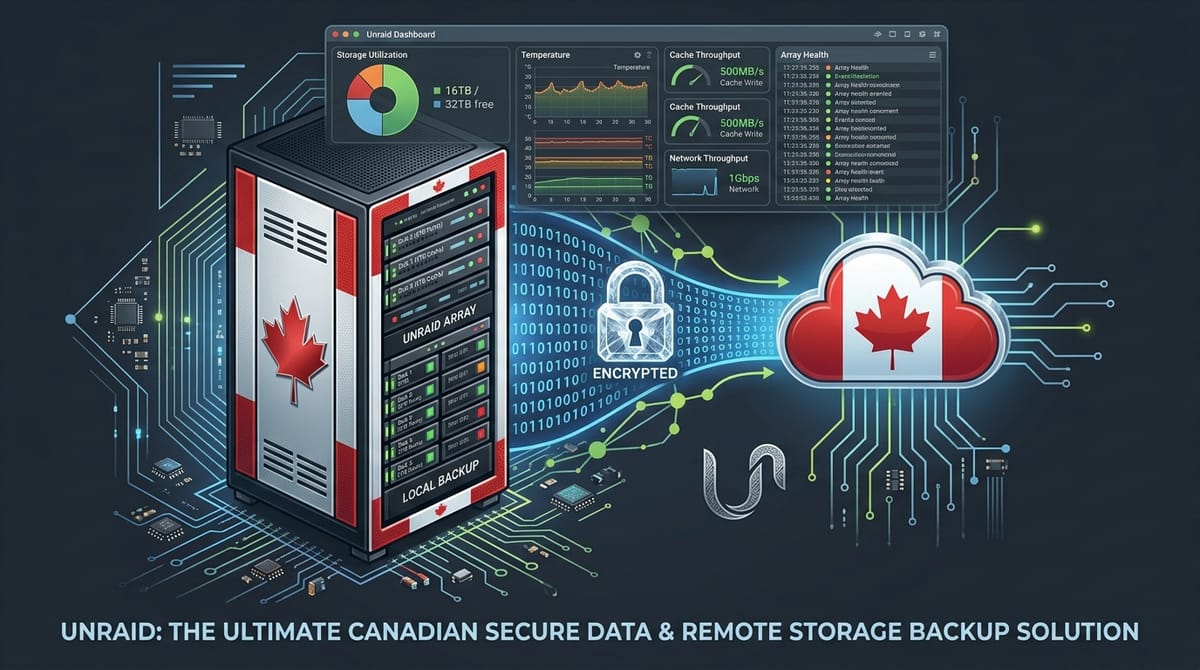
What should you do next?
By now, you should have a much clearer picture of what goes into building your first Unraid server.
You don't need a rack full of equipment. You don't need to install 30 applications on the first night. And you definitely don't need to understand every setting before you begin.
You need a goal, suitable hardware, a working installation, a few useful applications, and a sensible approach to security and backups.
The rest comes with experience.
My own homelab has grown into a collection of services that handle everything from personal files and photos to home automation, media, networking, and local AI experiments. It's an ongoing project, and that's part of the appeal.
There's always something to improve, something new to try, or something that worked perfectly yesterday and has decided to become a problem today.
That's homelabbing.
The real benefit isn't simply having a server. It's learning how the technology works, gaining control over more of your digital life, and building something that suits your needs rather than someone else's business model.
And if you break something along the way? Well, congratulations. You're learning.
Just make sure you have a backup first.
Your free Unraid beginner's checklist
Before you get started, make sure you can tick off these five items:
- [ ] Decide what you want your server to do.
- [ ] Check your existing hardware and establish a budget.
- [ ] Install Unraid and understand your storage configuration.
- [ ] Deploy your first application and verify that it works.
- [ ] Set up backups, security, and basic monitoring.
Work through those five steps, and you'll have a solid foundation for your own home server.
Ready to get started? Visit the official Unraid website to explore the software and its current licensing options.
And if you want to follow along as I build, maintain, break, fix, and occasionally overcomplicate my own homelab, keep an eye on the blog.
Because apparently, I wasn't satisfied with having a perfectly functional home. I needed a server room, too.
Keep Exploring Your Homelab
Getting your first Unraid server running is just the beginning. Once you've got the basics sorted, here are a few projects from my own homelab that can help you take the next step.
- Setting Up Unraid: From a Pile of Hardware to a Canadian Cloud — A more detailed walkthrough of building and configuring your server.
- Setup Immich on Unraid: Self-Hosting a Google Photos Alternative — Put your server to work managing your personal photo library.
- How to Back Up Unraid: Appdata Backup, ZeroByte & Canadian Backblaze B2 — Build a backup strategy before a failed drive or accidental deletion ruins your weekend.
- Pi-hole on a Raspberry Pi, and Why You Should Have Two — Explore network-wide ad blocking and DNS redundancy.
- How to Set Up Frigate on Unraid with Reolink PoE Cameras — Build a local security camera system using your homelab.
You don't need to build everything at once. Pick a project, learn how it works, and expand when you're ready. That's half the fun of running your own server. The other half is figuring out what you broke last weekend.